Typhoon Wiki v1
Next-gen industrial viewer
Loading...
Searching...
No Matches
Installation and Versioning

This guide provides the necessary steps to install Typhoon, explains the automatic update system, and details the software versioning strategy. Typhoon is distributed for Windows x64.


System Requirements

Before installing Typhoon, make sure your computer meets the minimum recommended requirements:

  • Operating System
    • Windows 10 or higher
  • RAM
    • Minimum: 4 GB
    • Recommended: 8 GB or more
  • Graphics Card (GPU)
    • DirectX 11 or higher compatibility
    • Dedicated GPU recommended for smooth performance with large scenes
  • Internet Connection
    • Required for automatic updates

Versioning Scheme

Typhoon uses a version format based on the release date:

v[YEAR].[MONTH].[DAY].[BUILD]

Example:

v2025.07.10.1

This system allows you to quickly identify when each version was generated and facilitates traceability between builds.


Automatic Installation

Typhoon includes an automatic update system that keeps the application up to date without manual intervention.
Steps:

  1. Start Typhoon from the shortcut.
  2. Open the Help > Check for Updates menu.
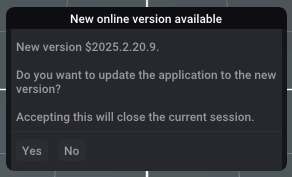
  3. If a new version is available, a notification will appear.
  4. Accept the prompt and follow the wizard steps to update.
Update available indicator

Note: The system preserves your settings and projects when updating.


Manual Installation

If you prefer to install manually or need to install Typhoon in an offline environment, follow these steps:
Steps:

  1. Download the installer from the following official link:
    Download Typhoon
  2. Run the downloaded file.
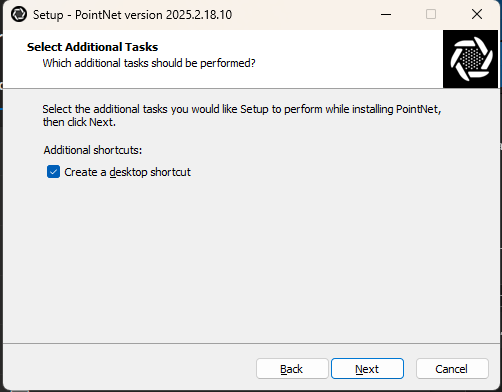
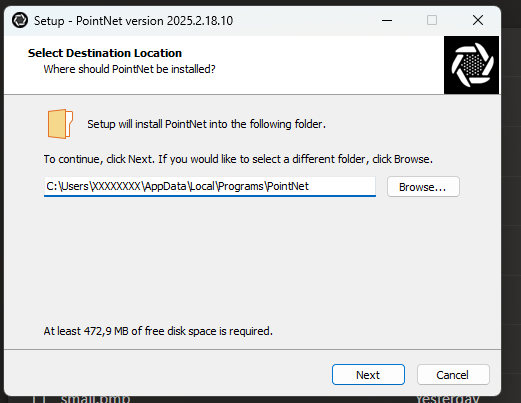
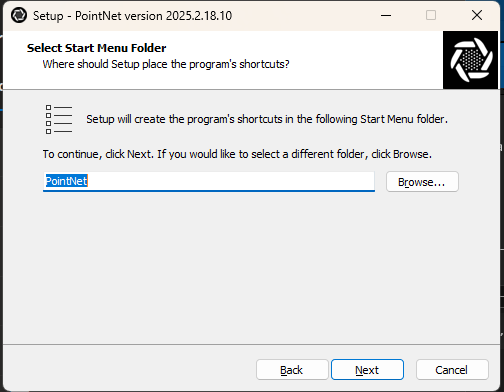
  3. Follow the wizard instructions:
    • Accept the license terms
    • Choose the installation directory
    • Select optional components
  4. Finish the installation by clicking Install.


Manual Update

To update manually:

  1. Download the latest version of the installer.
  2. Run the new file.
  3. The system will update the existing files without deleting your settings.

Tip: Typhoon detects if a previous version is installed and will update it automatically without data loss.


Uninstallation

To completely uninstall Typhoon from your system:

  • On Windows:
    Go to Control Panel > Programs > Uninstall a program, select Typhoon, and click Uninstall.
  • Alternatively:
    Run the uninstaller from the folder where the application was installed.

Important: Your .typh projects and custom settings will not be deleted.


Advanced Settings

In corporate environments or with network restrictions:

  • You can define a proxy at:
    Settings > Network > Configure proxy

This will allow access to the update system even on networks with filters or firewalls.


Having issues during installation? Check the Troubleshooting section or contact support.